Stop Zigbee Device Dropouts: The Simple Wi-Fi Channel Change That Costs Nothing
If you're experiencing frequent disconnections or sluggish responses from your smart home devices using Zigbee, the culprit might not be your Zigbee network itself. Instead, it could be your Wi-Fi router operating on the same 2.4 GHz frequency band. Both Zigbee and Wi-Fi share this crowded spectrum, leading to interference that degrades performance. Fortunately, there's a completely free solution: adjusting your router's Wi-Fi channel. Below, we answer common questions about this issue and guide you through the fix.
Why do my Zigbee devices keep dropping off the network?
Zigbee devices rely on short-range wireless communication in the 2.4 GHz band, which is also used by many Wi-Fi networks. When your Wi-Fi router operates on overlapping channels, it generates radio frequency interference that can drown out Zigbee signals. This interference causes packet loss, increased latency, and ultimately devices falling offline or becoming unresponsive. The severity depends on how close your Wi-Fi and Zigbee networks are physically and how congested the channel is. Common symptoms include smart lights that don't respond immediately, sensors that fail to report, or a hub that repeatedly loses devices.
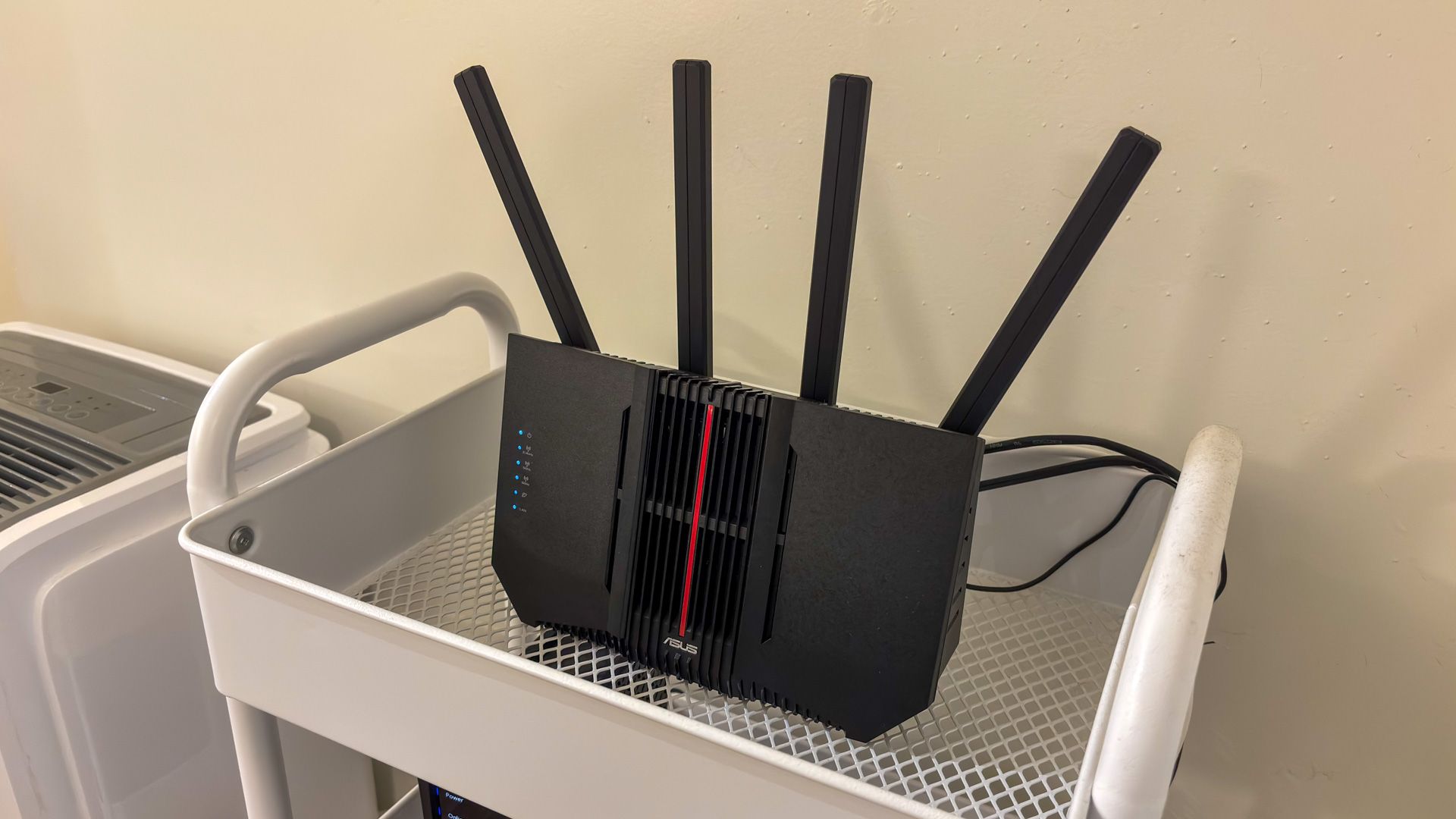
How does 2.4 GHz Wi-Fi interfere with Zigbee?
Both technologies use the same 2.4 GHz frequency band, but they employ different modulation and channel widths. Wi-Fi typically occupies 20 MHz or 40 MHz channels, while Zigbee uses narrower 2-5 MHz channels. When a Wi-Fi channel overlaps with one or more Zigbee channels, strong Wi-Fi signals can mask the weaker Zigbee transmissions. The problem is exacerbated because Wi-Fi often transmits at higher power levels. Additionally, Wi-Fi devices like routers and access points are usually placed in central locations, right where Zigbee coordinators often are. This proximity amplifies the interference, causing Zigbee devices to struggle to maintain reliable connections.
What is the free fix for Zigbee and Wi-Fi interference?
The cheapest and most effective solution is to change your Wi-Fi router's channel to one that doesn't overlap with the Zigbee channel your network uses. Zigbee typically uses channels 11, 12, 13, 14, 15, or 16 in the 2.4 GHz band (depending on region). Wi-Fi channels 1, 6, and 11 are the least overlapping with each other and with common Zigbee channels. By selecting a Wi-Fi channel that is spaced away from your Zigbee channel, you can dramatically reduce interference. This adjustment costs nothing and can be done in your router's settings. After making the change, reboot both your router and Zigbee hub to see improvements.
Which Wi-Fi channel is best for avoiding Zigbee conflicts?
In most setups, the best practice is to use Wi-Fi channels 1, 6, or 11 because they don't overlap with each other. However, the ideal channel depends on your Zigbee network's channel selection. Many Zigbee hubs automatically choose a channel when first set up, often defaulting to channel 11, 15, or 20. You can check your Zigbee hub's interface to see which channel it uses. Then set your Wi-Fi router to a channel that is at least 5-10 MHz away. For example, if Zigbee is on channel 15, Wi-Fi on channel 1 or 11 works well. Avoid channel 6 if Zigbee is on a nearby channel. Use a Wi-Fi analyzer app to see which channels are least congested in your area.

How do I change my router's Wi-Fi channel?
To change the Wi-Fi channel, log into your router's administration interface (usually via a web browser at an IP like 192.168.1.1 or 192.168.0.1). Enter your credentials (often printed on the router). Navigate to the Wireless Settings or Wi-Fi section. Look for the 2.4 GHz band settings and find the channel selection dropdown. Choose a channel from the list – typically 1, 6, or 11 are recommended. Save the settings and reboot the router if prompted. After rebooting, reconnect your devices. You may also need to restart your Zigbee hub to ensure it re-establishes communication without interference. Check your devices to see if dropouts decrease.
Will this fix work for all Zigbee networks?
For most standard home Zigbee networks, changing the Wi-Fi channel is highly effective. However, in dense urban environments where many Wi-Fi networks are present, you might still experience some interference even after optimizing your channel. In such cases, consider using Zigbee devices that support channel agility or moving your Zigbee coordinator away from the router. Another option is to switch to Zigbee running on a different band if your hub supports it. But for the vast majority of users, this free adjustment resolves the majority of connectivity problems. Remember that Zigbee repeaters (router devices) can also help strengthen the network. Even so, the channel change is the first and easiest step.
Can other devices cause Zigbee interference?
Yes, many household devices emit RF noise in the 2.4 GHz band. Common culprits include Bluetooth devices (though usually lower power), microwave ovens (especially when running), cordless phones, baby monitors, and even some wireless speakers. These can all contribute to a noisy environment that degrades Zigbee performance. However, Wi-Fi routers are often the dominant source because they transmit continuously at high power. To minimize overall interference, place your Zigbee hub away from your router and other electronics. Also, avoid mounting the hub inside metal cabinets or near large metal objects. If the problem persists after changing Wi-Fi channels, consider checking for other sources of interference in the same frequency range.