How to Master the Pride Luminance Watch Face in watchOS 26.5
Introduction
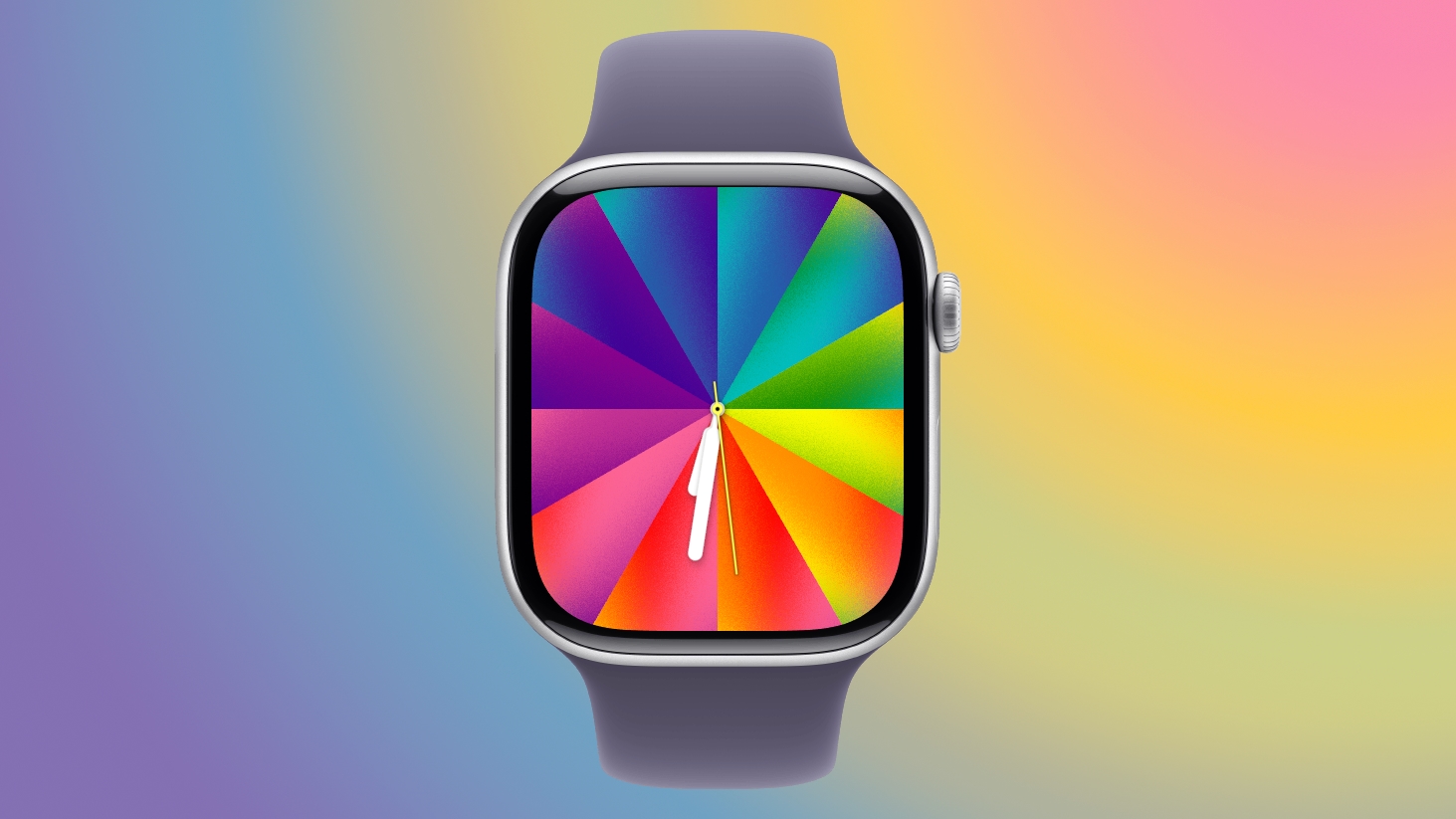
Apple’s watchOS 26.5 introduced a stunning new watch face called the Pride Luminance. This isn’t just another static face—it’s a dynamic, highly customizable canvas that lets you express your personal style. From subtle radial gradients to bold linear patterns, the Luminance face adapts to your wrist, shrinking to slim lines when idle and blooming into full color when raised. In this guide, you’ll learn how to set up, customize, and make the most of this versatile watch face. We’ll walk through every option, including how to pick colors, choose dial styles, and even sync a matching wallpaper on your iPhone.
What You Need
Before diving in, ensure you have the following:
- An Apple Watch running watchOS 26.5 or later
- An iPhone running iOS 26.5 or later (for the matching wallpaper and initial setup)
- The Apple Watch paired with your iPhone
- Optional: an internet connection to download the update if not already installed
If you haven’t updated yet, go to Settings > General > Software Update on both devices. The updates require a stable Wi‑Fi connection and sufficient battery (at least 50%) on the Watch.
Step 1: Access the Watch Face Gallery
There are two ways to add the Pride Luminance face:
- On the Watch itself: Press firmly on the current watch face (or long‑press if using watchOS 27+), then swipe left until you see the + icon. Tap it, then scroll to find the Luminance face.
- On your iPhone: Open the Watch app, tap Face Gallery at the bottom, then look under the “New Watch Faces” section. Tap Pride Luminance to add it to your collection.
Once added, it becomes available for editing.
Step 2: Choose Your Color Palette
The heart of the Luminance face is its color selection. You can use from 1 to 12 colors. Here’s how:
- Tap Customize on the face preview (or long‑press the face on your Watch and tap Edit).
- Select Colors from the options. A palette appears with a spectrum of the rainbow, plus black, white, brown, gray, and in‑between shades.
- Tap a color to add it to the gradient. To remove a color, tap it again or drag it off the strip.
- Arrange the order by dragging colors left or right. The gradient will update in real‑time.
Pre‑configured color combos are displayed at the top—these include Pride flag inspired sets. But feel free to go wild: match your outfit, support a sports team, or just pick your favorites.
Step 3: Select Your Gradient Style
Once your colors are set, decide how they appear:
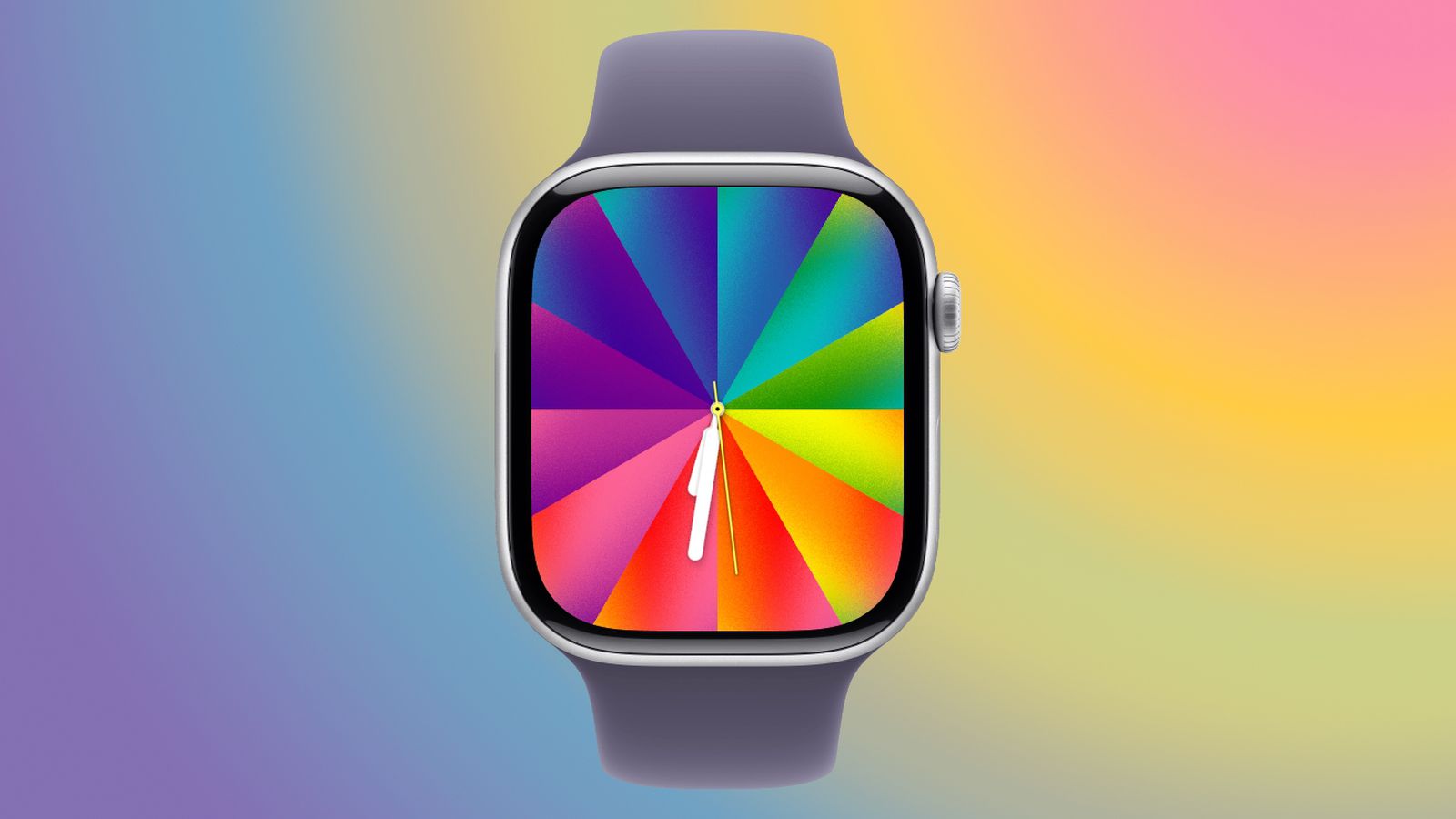
- Radial: Colors radiate from the center like a starburst. This looks dramatic and highlights the middle of the dial.
- Linear: Colors run in parallel lines across the face, creating a striped effect that’s more geometric.
To change the style, tap Style during customization and toggle between Radial and Linear. Preview the change immediately on the watch face.
Step 4: Choose the Dial Shape
Next, decide how the color zone occupies the screen:
- Circle: Renders the gradient inside a circular dial. This leaves room for up to four complications (information widgets like weather, activity rings, etc.)
- Rectangle: Spreads the gradient edge‑to‑edge for a fully immersive color background. Note: this option does not support complications—only the time display.
Tap Dial to switch between the two. If you love complications, stick with Circle. For a pure artistic look, choose Rectangle.
Step 5: Adjust Complications (Circle Only)
If you selected Circle dial, you can assign complications to the four corners:
- In the customization screen, tap Complications.
- Tap each empty slot and choose from available data: Activity, Heart Rate, World Clock, etc.
- Your chosen colors will frame these complications nicely.
Remember: the colors animate and shift slowly, so complications remain readable but the background adds visual interest.
Step 6: Enjoy the Animation
The Luminance face isn’t static. When your wrist is down, the colors shrink into thin, subtle lines against a black background—saving power and looking minimal. When you raise your wrist, the colors expand into the full gradient you designed. Over time, the colors also shift slowly, creating a living, breathing effect. No additional action needed; this happens automatically.
Step 7: Sync a Matching iPhone Wallpaper
iOS 26.5 includes a companion Pride Luminance wallpaper for your iPhone. Here’s how to apply it:
- On your iPhone, go to Settings > Wallpaper > Choose a New Wallpaper.
- Scroll to find Pride Luminance (usually under the “New” section).
- Tap Customize to choose your own 1‑12 color palette—the exact same process as the watch face.
- Select Set as Wallpaper Pair to apply it to both Lock Screen and Home Screen.
On the Lock Screen, the colors collapse onto a black background when the device is locked, mimicking the watch face behavior.
Tips for Getting the Most Out of the Luminance Face
- Experiment with odd color counts: 1‑2 colors give a minimalist look; 6‑8 create a smooth rainbow; 12 colors can feel busy.
- Use contrasts: Pair a bright color with black to make it pop. For a subtle look, use similar hues like pastels.
- Match your band: Coordinate the face colors with your Apple Watch band for a cohesive style.
- Battery impact: The face uses more power than static faces due to animation, but modern Apple Watches handle it well. If battery is a concern, use a simpler face during workouts.
- Try both styles: Radial and Linear can give completely different vibes. Save two variations to your collection so you can switch easily.
- Share your creations: Show off your custom color combos on social media or with friends—everyone loves a unique watch face.
- Check for updates: Apple may add more pre‑sets in future watchOS versions. Keep your devices updated.
With these steps, you can transform your Apple Watch into a personal art piece. The Pride Luminance face is more than a celebration—it’s a tool for self‑expression. Enjoy customizing!