Stop Rebooting Your Router: Diagnose Wi-Fi Issues with a Free Android App
Working from home makes a stable internet connection essential. When the Wi-Fi drops or slows down, the classic fix is to restart the router—but that kicks everyone offline for a few minutes. A smarter, less disruptive approach is to use a free Android app that pinpoints the real problem, saving time and frustration. Below are common questions to help you understand how these apps work and why they are a game-changer for remote workers.
1. What are the most common Wi-Fi problems that disrupt work-from-home setups?
Wi-Fi issues often stem from three main sources: interference, congestion, and signal weakness. Interference can come from neighboring networks, microwaves, or cordless phones operating on the same frequency. Congestion happens when too many devices share the same channel, causing slowdowns. Signal weakness is usually due to distance from the router or physical obstructions like walls. Other culprits include outdated router firmware or internet service provider (ISP) outages. Recognizing these symptoms is the first step toward a fix—and a diagnostic app can identify which one is affecting your connection.
2. Why is restarting the router not always the best solution?
Rebooting a router clears temporary glitches and renews IP addresses, so it works often enough to become a habit. However, it’s a blunt instrument that disrupts every connected device for several minutes. If your problem is interference or congestion, a reboot only masks the issue temporarily—it’ll return once interference peaks again. Moreover, frequent restarts can stress router hardware over time. A better approach is to diagnose the root cause first, then apply a targeted fix (like changing the Wi-Fi channel) without taking your whole network offline.
3. How can a free Android app help diagnose Wi-Fi problems?
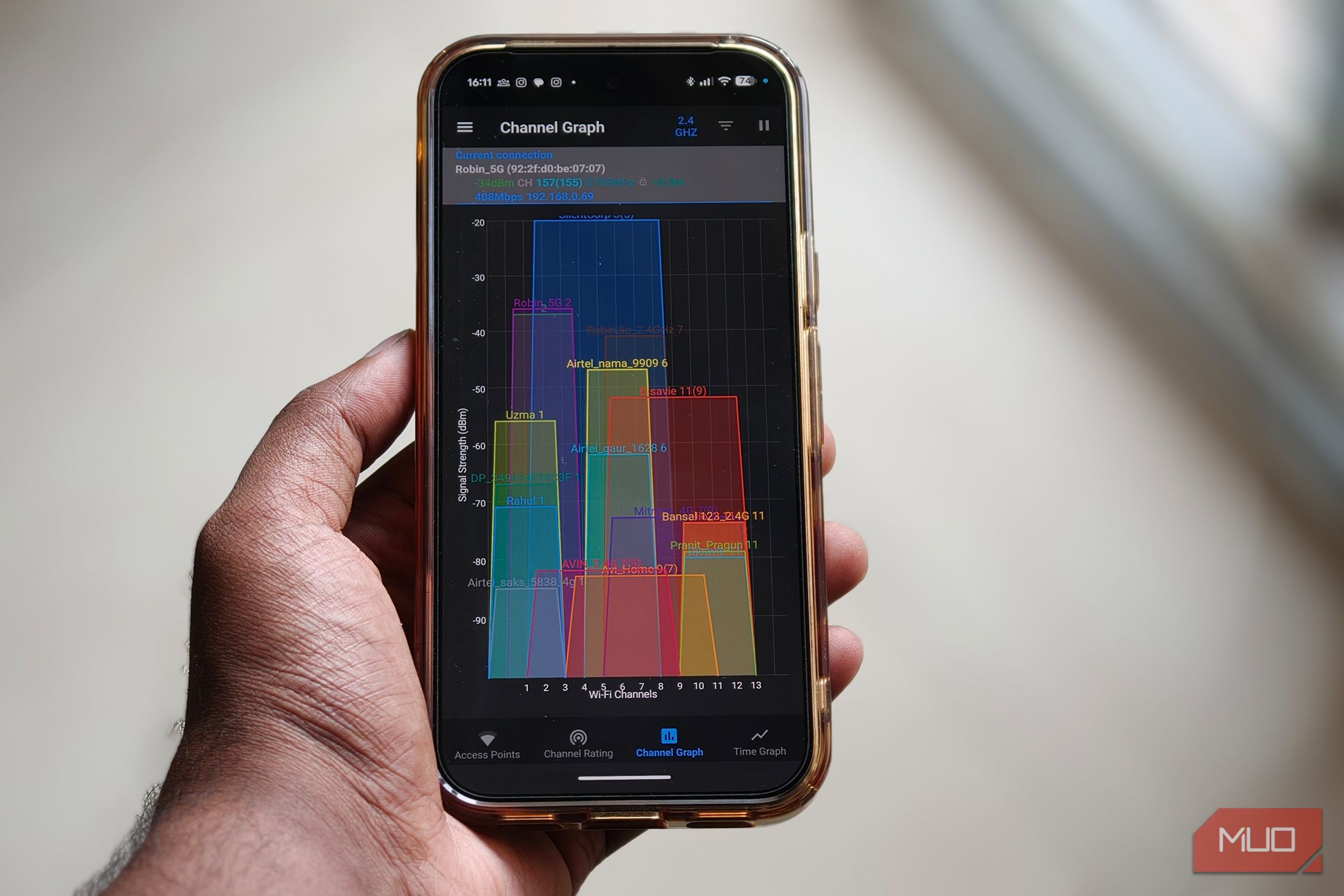
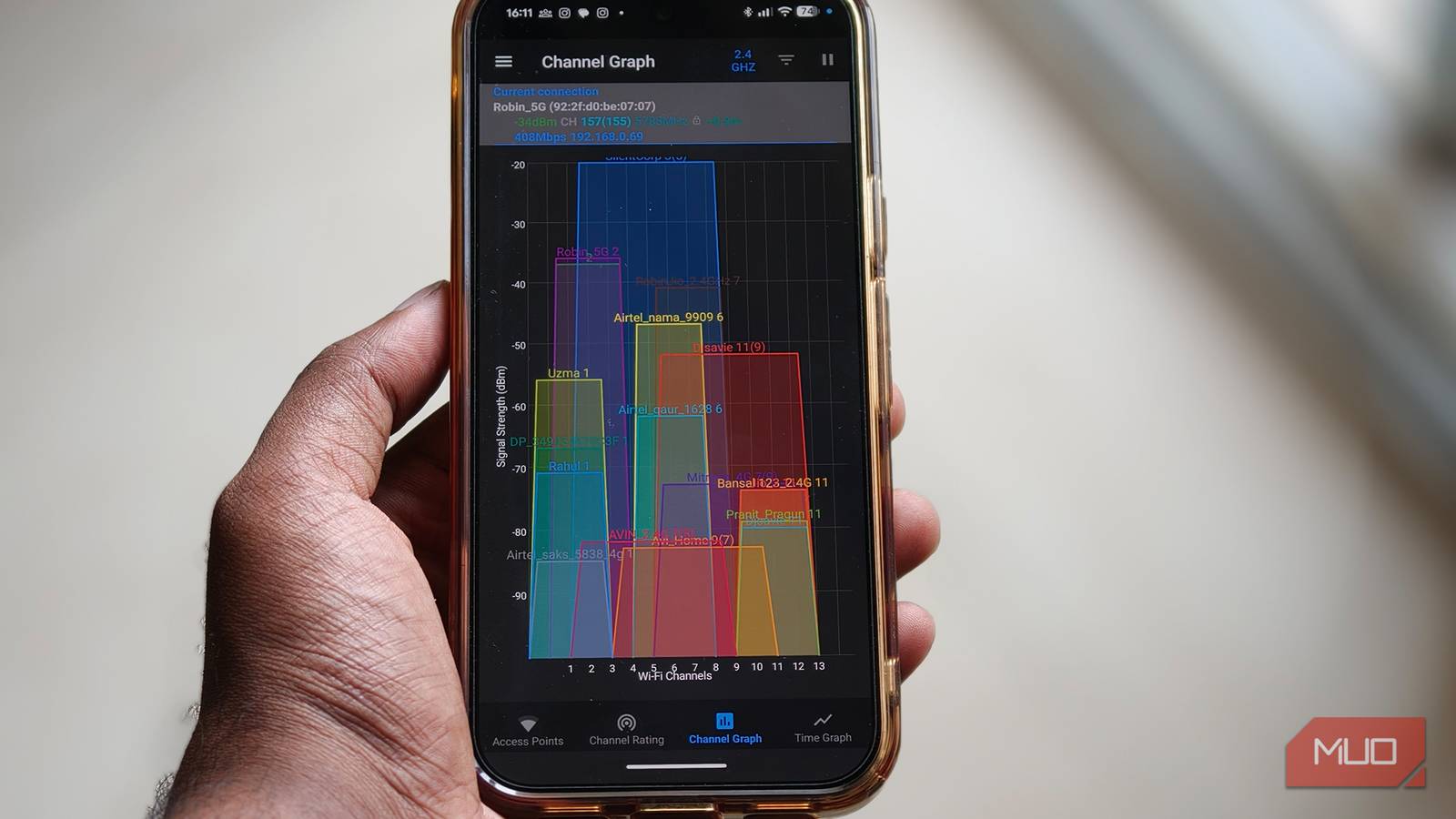
Free Android apps such as WiFi Analyzer, Network Signal Info, or PingTools turn your phone into a portable network scanner. They measure signal strength, identify nearby networks, show channel usage, and run ping tests to check latency and packet loss. For example, you can walk around your home while the app displays real-time signal bars, revealing weak spots. The app can also detect if your router’s channel is overcrowded and suggest a less congested one. This data empowers you to make informed decisions—like repositioning the router or changing settings—instead of blindly rebooting.
4. What specific features should I look for in a Wi-Fi diagnostic app?
Look for apps that include:
- Signal strength meter with a graphical display (dBm values).
- Channel analysis to show which Wi-Fi channels are busiest.
- Ping and traceroute tools to test connectivity to a server.
- Bandwidth testing (speed test) to measure actual throughput.
- Network discovery to list all devices on your network.
5. How do I use a Wi-Fi diagnostic app to identify the root cause?
Start by opening the app when your connection seems normal—take a baseline measurement. Later, when you experience issues, launch the app again. Compare signal strength: if it dropped significantly, you may have interference or a physical barrier. Check the channel graph: if many networks are on the same channel, consider switching yours. Run a ping test to your router: high latency or packet loss suggests local problems; if pings to your router are fine but external pings fail, the issue lies with your ISP. The app’s logs help you correlate specific times or activities with network degradation, making troubleshooting precise.
6. What are the advantages of using a diagnostic app over simply restarting the router?
The key advantage is precision. Instead of a blunt reboot, you get actionable data: weak signal, channel congestion, or ISP trouble. This means you can fix the issue without taking the whole network offline. Diagnosis also prevents recurring problems—if you discover that a neighbor’s new router is causing interference, you can change your channel once, not restart every day. Over time, using an app can even save you money by helping you decide if you need a mesh system, a better router position, or an ISP upgrade. Plus, it gives you confidence that you’re solving the real problem, not just masking symptoms.
7. Are there any limitations to relying on mobile-based diagnostic tools?
While powerful, mobile apps have limitations. They measure Wi-Fi from your smartphone’s perspective, not the router’s—so results can vary depending on your phone’s antenna quality. They cannot directly access router logs or adjust firmware settings unless you have a complementary app from the router manufacturer. Also, some advanced features (like deep packet inspection) require paid versions. Still, for everyday troubleshooting, free apps provide 90% of the answers a home user needs. They are an excellent first step before escalating to a professional tool or calling your ISP.
8. Can these apps help prevent future Wi-Fi disruptions?
Absolutely. Once you’ve diagnosed the landscape, you can take preventive measures. For example, selecting the least crowded channel reduces future congestion. If the app shows a weak signal in your home office, you can reposition the router or add a repeater before issues arise. Regularly running periodic checks during different times of day helps you spot patterns—like evening slowdowns from neighbor usage. Some apps even let you set up notifications when signal drops below a threshold. Proactive monitoring turns your Android phone into a network watchdog, keeping your workday smooth.